Loading from Tape
Klive can emulate playing back tape files with .tap and .tzx extensions. To use them with the LOAD Basic command, first select a tape file using the Machine | Select Tape File function. This command opens a file selection dialog where you can select a .tap or .tzx file. You can also select files with other extensions. In that case, the Emulator tries to read them as tape files by attempting to parse them.
On successful read, you can issue a LOAD Basic command (or use the Tape Loader from the startup menu of ZX Spectrum 128/+2E/+3E). The running LOAD command will playback the selected file.
You can change the tape file any time, even when the machine is stopped, paused, or running. The effect of such a change is similar to ejecting a tape from a physical tape player and inserting a new one.
Normal and Fast Load
Loading ZX Spectrum programs and tapes may take a long time, especially for large files. Besides the normal loading mode, Klive supports fast load, which reads the program instantly, in a fraction of a second.
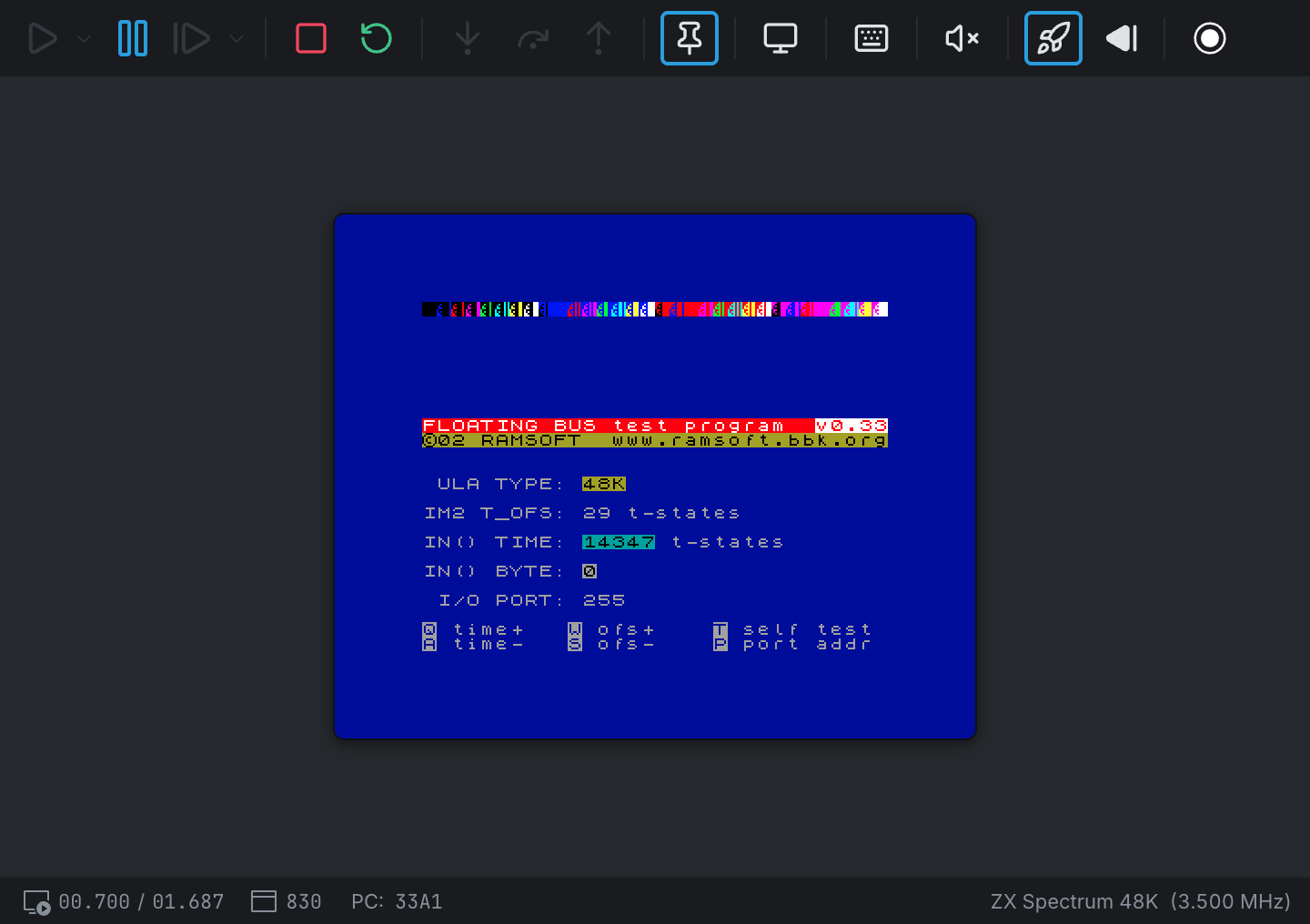
You can turn on or off fast load with the Machine | Fast Load command or by clicking the Fast Load icon (rocket) in the toolbar.
You can change the Fast Load mode even while loading a game. However, the change will take effect only when you start loading a program next time.
By default, fast load is turned on.
Revinding the Tape
When the loading completes or gets interrupted, the tape position stays as if you stopped the physical tape player. When you issue the LOAD command again, the load operation starts searching the following file header from the position where it has been stopped.
You can rewind the tape to its beginning just as you can do it with a physical tape cassette. Click the Rewind icon in the toolbar (the one to the right of the rocket icon) or execute the Machine | Rewind Tape command.
Viewing a Tape File
Open a .tap or .tzx file from the Explorer to see what is on it (the extension’s case does not matter: GAME.TAP opens too). The viewer shows:
- A summary: the format (and the TZX version), the file’s size, how many blocks and files it holds, how long it plays, and the title, publisher and year of a TZX file that records them.
- A timeline strip: the whole tape in play order, each block as wide as the time it takes to play. The selected block is outlined; click a segment to select its block. A BASIC program is drawn in the accent colour, and a block Klive cannot play in red.
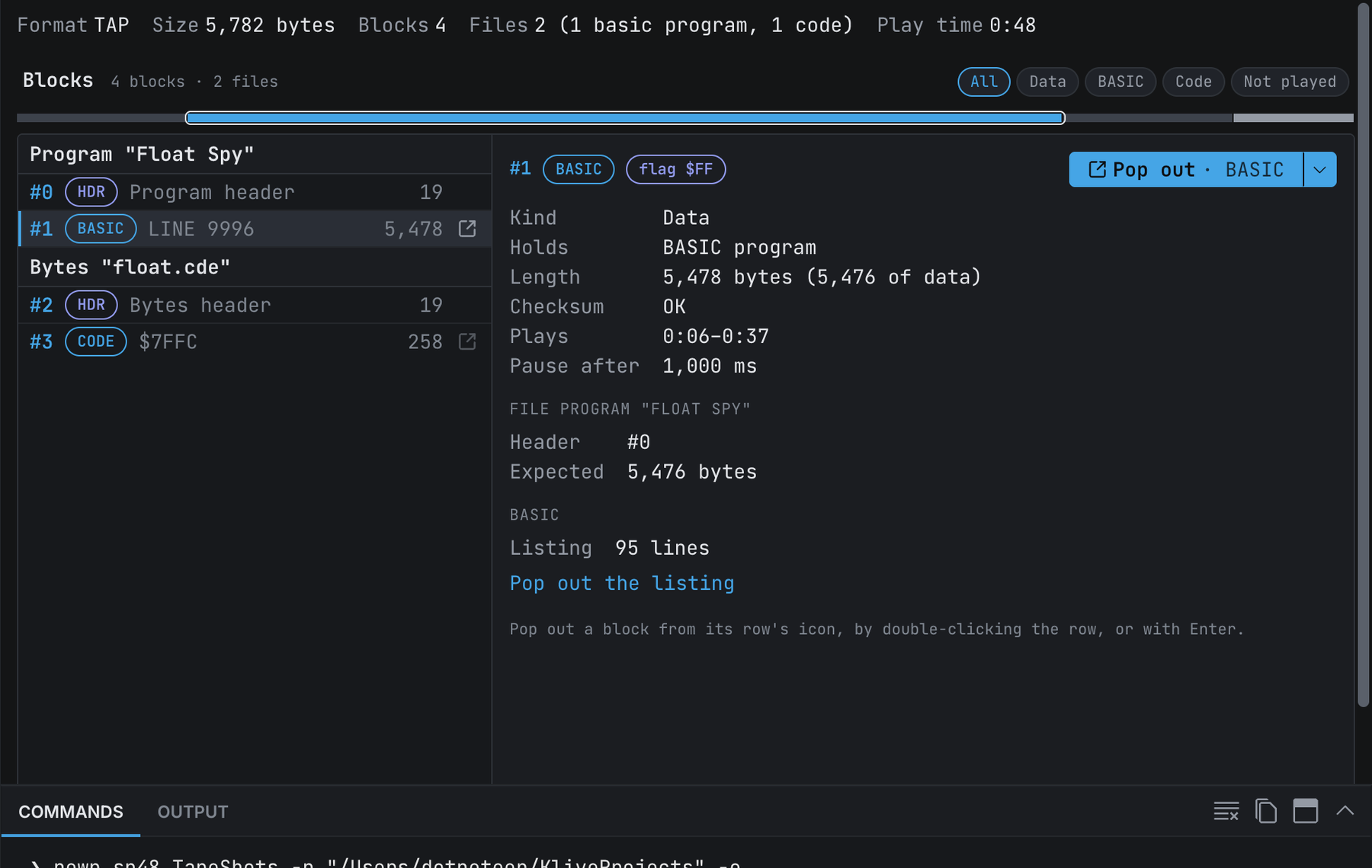
- The blocks: every block in a list, grouped by file. A standard header and the data block after it form one file, such as
Program "Float Spy"orBytes "float.cde". Each row shows what the block holds:LINE 9996for a program that starts itself, the load address of code. Use the All, Data, BASIC, Code and Not played buttons to filter the list, and the arrow keys to move through it.
The details beside the list describe the selected block: its length and checksum, when it plays, its header’s fields, and the timing of a turbo block. The list and the details always stay side by side. A BASIC program shows how many lines it has, and a screen (SCREEN$) is drawn; to read a program’s listing or a block’s bytes, pop the block out.
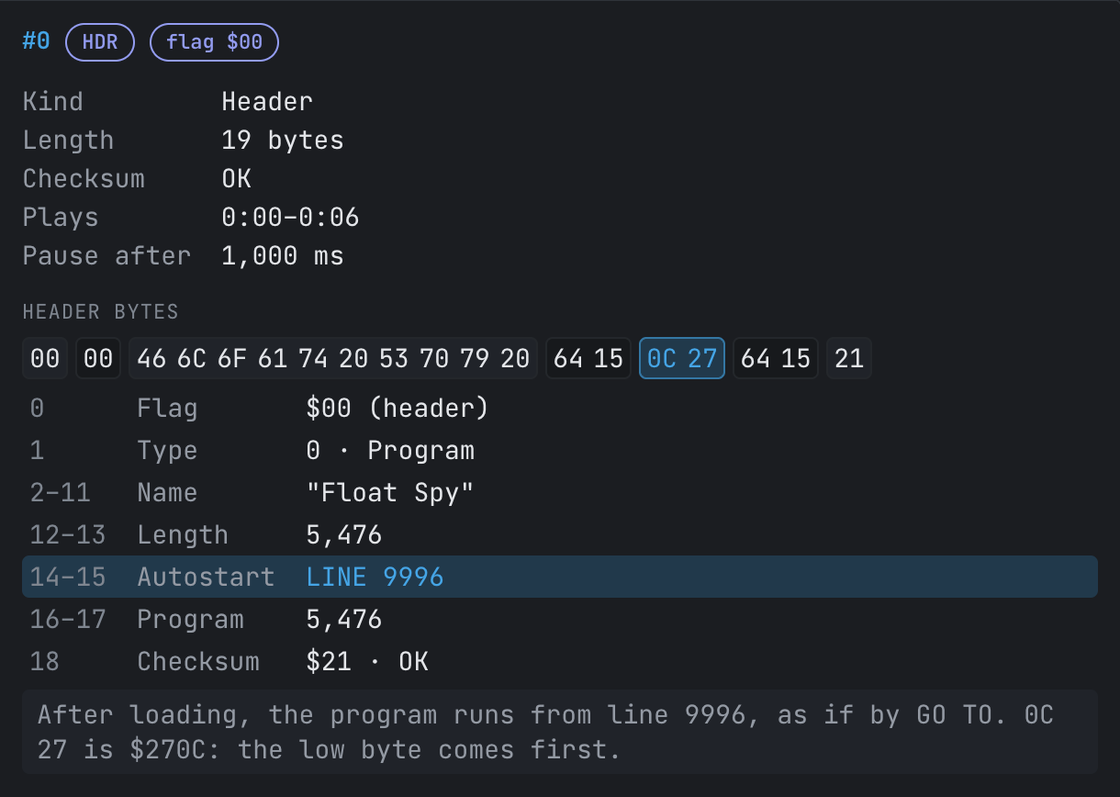
Select a header to see its 19 bytes explained. The bytes are grouped by field — flag, type, the ten-character name, three two-byte values and the checksum — above a list of the fields with their decoded values. Point at a byte or a field (or tab through the list) to highlight both and read what the field means; the autostart line of a program, or the load address of code, is explained from the start. The three two-byte values mean different things for each type of file, and the explanation says which.
Pop out a block to see all of it in its own document: as a memory dump (the default for code), as a disassembly at the address the block loads to, as a full BASIC listing, or as a screen. Use the button beside the block’s details (its arrow chooses the view), the icon on its row, a double-click, or Enter. Go Back returns to the tape. A block with no header has no load address of its own: type one in the List at box to disassemble it there, and right-click it to Read as BASIC when you know it is a program.
Some TZX blocks — pure tones, pulse sequences, pure data, direct and CSW recordings, generalized data — are shown but not played by Klive. A tape that needs them is marked with a banner, and its loading may fail.
Loading a Tape From the IDE
On a ZX Spectrum 48K, 128K or +2/+3, the tape viewer’s tab has three buttons, and the Explorer’s context menu on a .tap or .tzx file has the same three entries:

- Load and run tape (play icon) resets the machine and starts the tape loading: it types
LOAD ""on a 48K, and chooses Tape Loader from the start-up menu of a 128K or +2 (Loader on a +2A/+3, which boots a disk instead if one is in drive A). Whatever loader the tape carries then runs as it would on the real machine. - Insert tape (cassette icon) puts the tape in the deck without a reset, as Machine | Select Tape File does. Inserting the tape that is already in the deck rewinds it.
- Load and debug tape (debug icon) is Load and run with your breakpoints armed.
On any other machine, such as the ZX Spectrum Next, the buttons and the menu entries are disabled; a button’s tooltip says why. The same actions are available as the tape-load command.
How Fast Load Works
The Fast Load mode applies a powerful technique: ROM hooking. While the emulator runs, it observes when the OS reaches a particular entry point of the load subroutine (by examining the value of the PC register) in the ZX Spectrum ROM, including all ZX Spectrum models.
When the execution reaches the load routine, the Fast Load mechanism suspends the machine and injects the data from the tape file directly into the memory. While doing this, the algorithm sets the Z80 registers (including the flags) in the same way as the algorithm in the ROM.
When the data is loaded, the mechanism sets the current value of the PC register to the exit point of the load routine as if the CPU has executed that and exits the fast mode.
If there is some error during the load, the fast load mechanism sets PC to the beginning of the method that reports tape error.