Displaying the Memory Contents
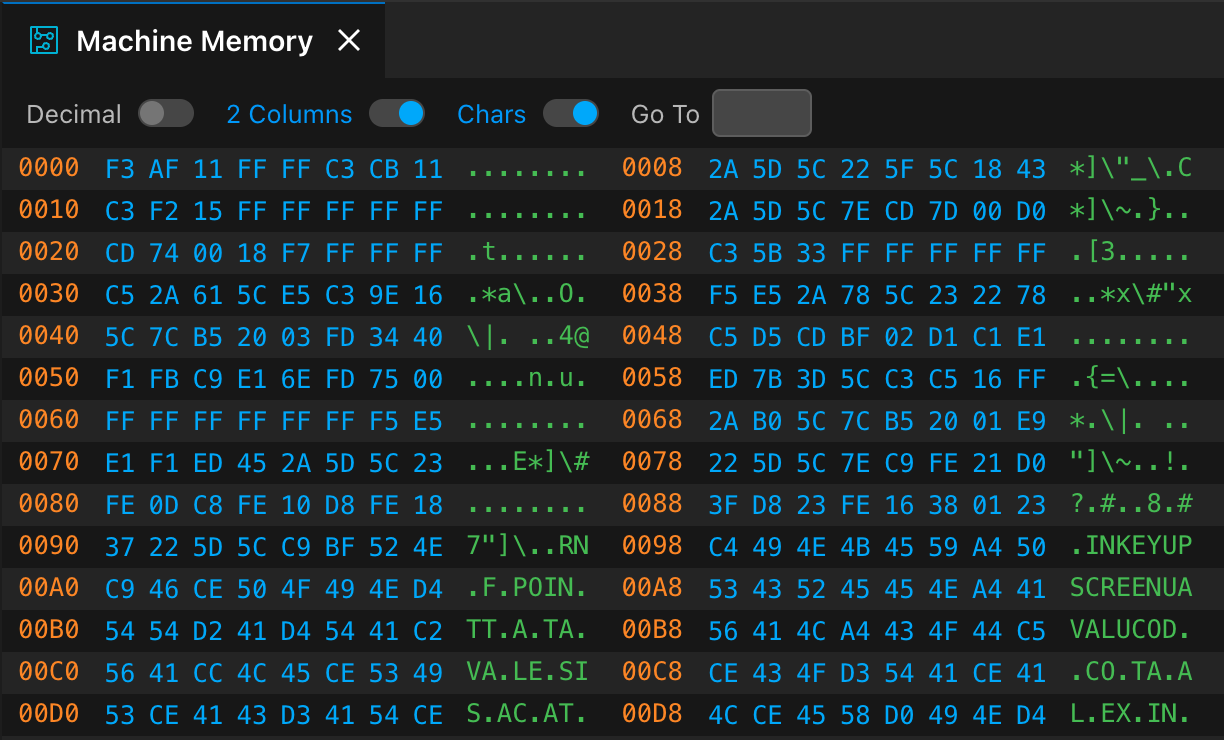
You can view the contents of the memory with the IDE | Show Machine Memory menu command that displays the contents of the full 64K memory addressable by Z80:
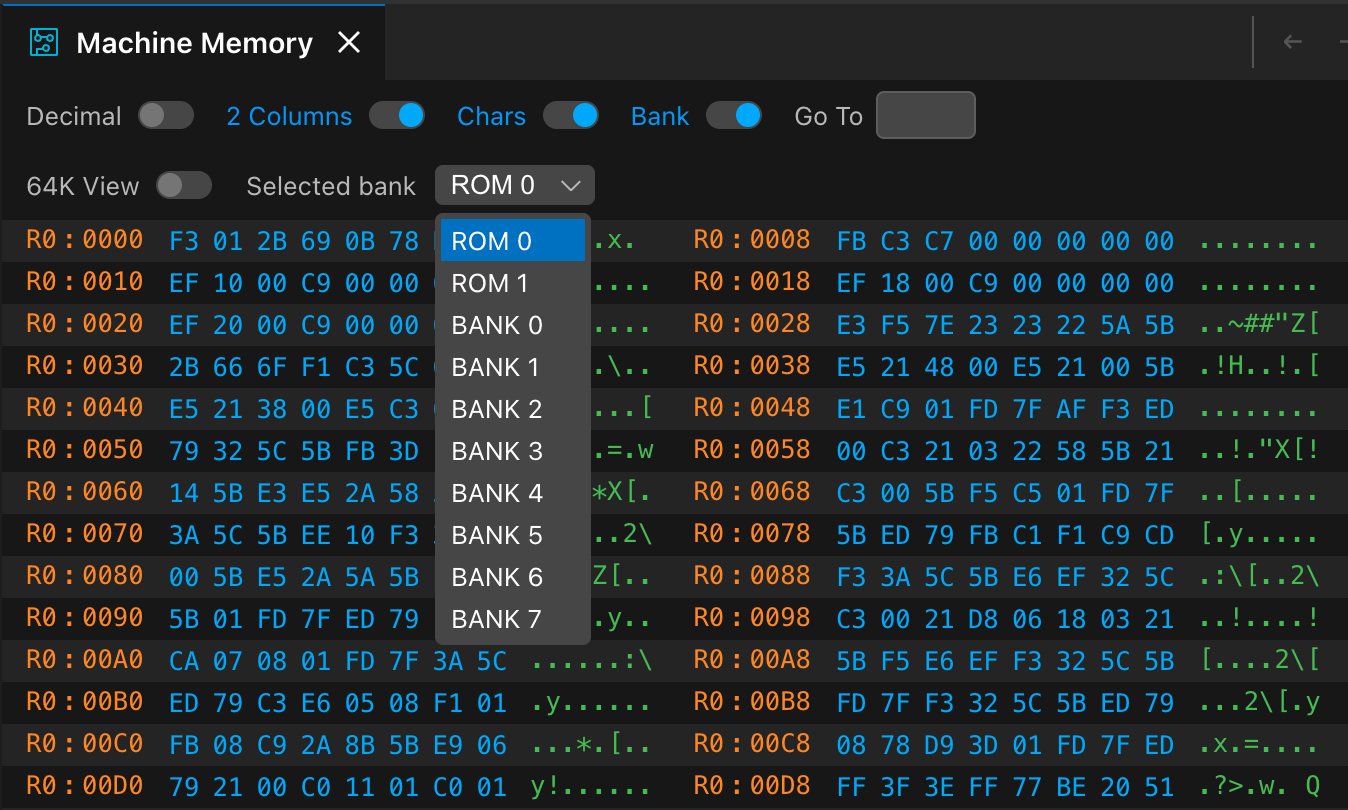
While the ZX Spectrum 48K does not support paging, other models do. When you use them, you can choose to show only the contents of a particular bank:
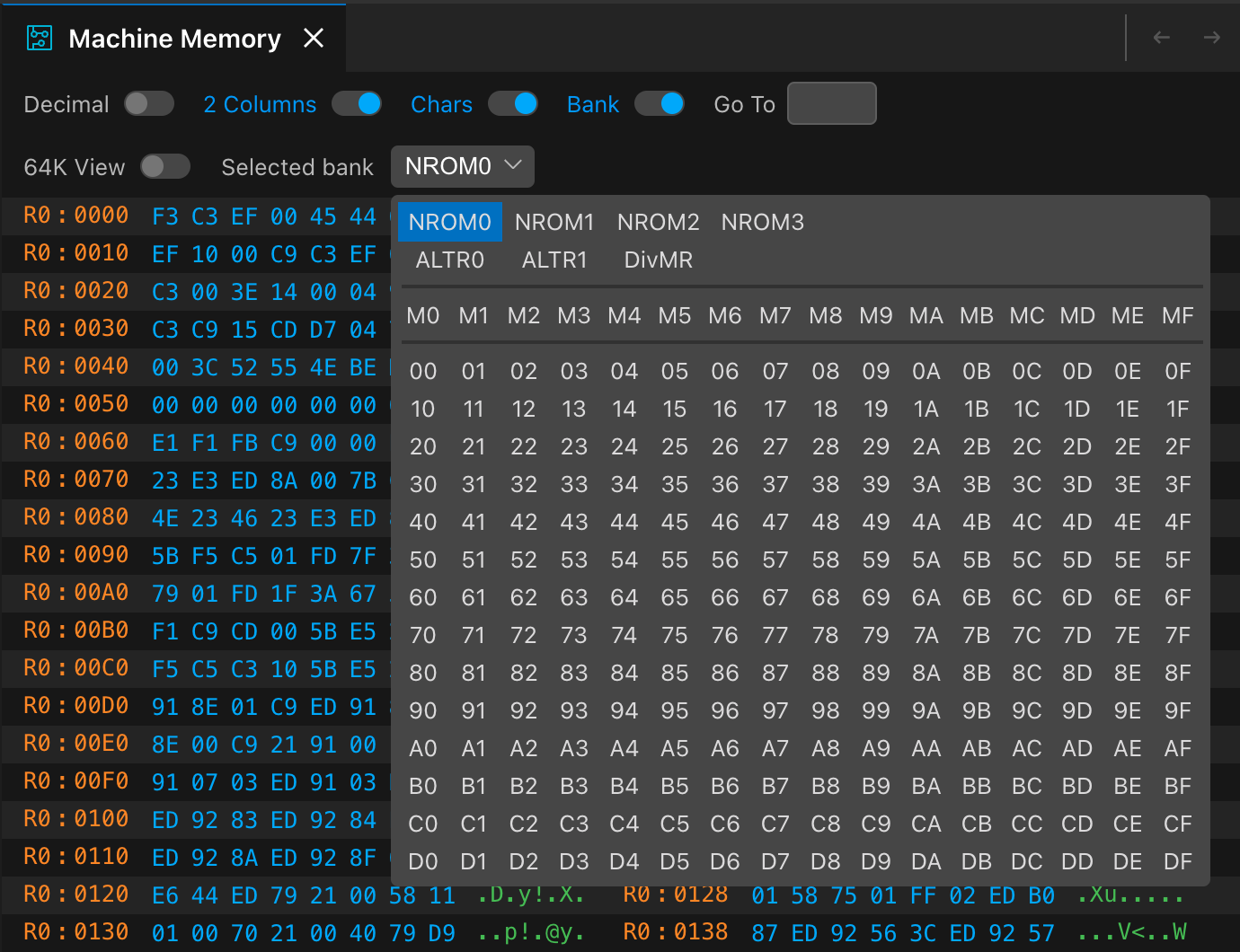
Some models (such as ZX Spectrum Next or Cambridge Z88) offer you many banks to choose from:
Display Options
The Memory View provides several options to display and navigate the memory contents:
- Decimal: Turns on or off the decimal display (off, by default). When turned on, memory addresses and content are displayed with decimal numbers; otherwise, they are hexadecimal.
- View: A dropdown menu to select the memory layout display mode:
- 8B / 1 col: Display 8 bytes per row in a single column (one dump section).
- 8B / 2 col: Display 8 bytes per row in two columns (two dump sections side by side). This is the default mode.
- 16B / 1 col: Display 16 bytes per row in a single column.
- Chars: This toggles the display of the character view for a particular memory section (on, by default). When enabled, each byte’s character representation is shown alongside the hex dump. Hovering over a byte in the hex area highlights the corresponding character in the character section with a border.
- Bank: This option (on, by default) allows you to turn the display of bank labels on or off in front of memory addresses. This option is available only for models that support memory paging.
- Go To: Type an address into this box and press Enter to jump to the particular address. Though memory sections are aligned to 8-byte boundaries when jumping to a new address, the designated address’s content flashes for about 3 seconds to let you identify the jump target. In decimal mode, you can type decimal addresses; otherwise, use hexadecimal addresses.
Banked Memory Views
A new switch, 64K View, is displayed in the second header row when your model supports memory paging. It is turned on by default, and the current 64K memory (according to the current memory page settings) is displayed. When you turn this option off, you can choose the bank to display (ROM pages or RAM banks, depending on the machine type) from the Select bank dropdown. The Memory View will display only the contents of that memory even if that segment is not paged in.
Edit Memory Content
When you hover the mouse over a memory address that represents RAM, you can edit its content by right-clicking it:
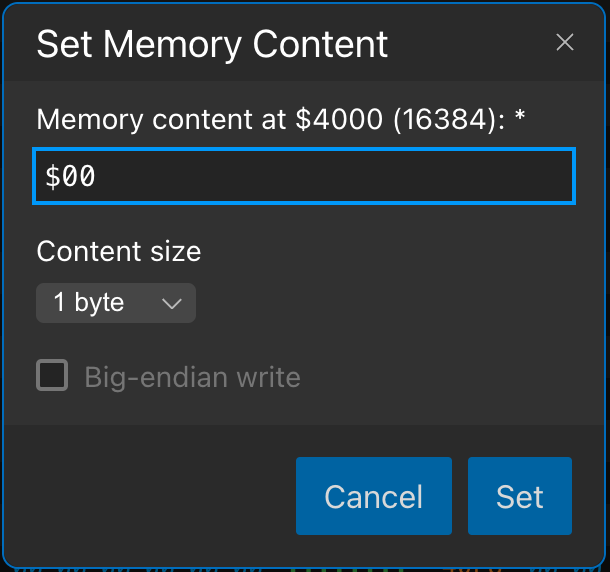
You can specify the new value with decimal numbers, hexadecimal numbers (use the $ prefix), or binary numbers (use the % prefix). You can use spaces to group digits; the IDE will remove them.
If the specified value cannot be parsed, a red border marks the invalid state. Clicking the Set button or pressing Enter will set the contents to the specified value.
With this dialog, you can write 1, 2, 3, or 4 consecutive bytes into the memory (select the size from the dropdown). The given value is entered as a little-endian value (LSB first). However, checking the Big-endian write flag stores the MSB first. This flag is available only for 2, 3, and 4-byte values.
Writing into the memory can be done while the machine is running. In this case, the machine may overwrite the modified value you set with this dialog! If necessary, pause the machine before setting the content of a particular memory address.
Though it seems unlogical, this command allows you to write memory contents while the machine is stopped. This feature may benefit several machines (such as Z88) with flash drives used as the operational memory.
Machine-Specific Memory Partitions
Every partition has one name and one description. The name is what identifies it: it is what
the bank column shows, what a breakpoint is listed under, and what the bp-* commands accept in a
partition-qualified address such as bp-set r1:$32ac. The description is the longer form a chooser
spells out beside the name; it is never typed and never appears in a breakpoint key.
Names are accepted case-insensitively, so r1 and R1 are the same partition.
ZX Spectrum 48K
No partitions: this model supports only the 64K view.
ZX Spectrum 128K
| Name | Description | What it is |
|---|---|---|
R0, R1 | ROM 0, ROM 1 | The two ROM pages, 16K each |
B0 … B7 | Bank 0 … Bank 7 | The eight RAM banks, 16K each |
ZX Spectrum +2E, +3E
| Name | Description | What it is |
|---|---|---|
R0 … R3 | ROM 0 … ROM 3 | The four ROM pages, 16K each |
B0 … B7 | Bank 0 … Bank 7 | The eight RAM banks, 16K each |
Cambridge Z88
| Name | Description | What it is |
|---|---|---|
00 … FF | Bank $00 … Bank $FF | The 256 banks, 16K each |
The Z88 has no ROM partitions: its ROM is a card in slot 0 rather than a fixed page.
ZX Spectrum Next
| Group | Name | What it is |
|---|---|---|
| Next ROM | R0 … R3 | The ROM pages of the ZX Next OS, 16K each |
| Alt ROM | X0, X1 | The alternate ROM pages, 16K each |
| DivMMC ROM | DM | The DivMMC ROM, 8K |
| DivMMC RAM | M0 … MF | The 16 DivMMC RAM banks, 8K each |
| — | 00 … DF | The 224 RAM pages, 8K each (000 to 223 in decimal view) |
The bank chooser heads each group once rather than repeating it on every entry, so a DivMMC RAM
bank appears as M3 under a DivMMC RAM heading. Hovering any entry names it in full.
On the ZX Next a RAM partition is an 8K page, which is the granularity of the machine’s own MMU.
Code and tools that think in 16K banks — the .bank pragma, a NEX file’s banks, the
.nex viewer — address them in pairs: 16K bank B is the two partitions 2B and 2B+1, its
low half first. So 16K bank 5 is partitions 0A and 0B.
The alternate ROMs are named X0 and X1 rather than the more obvious A0/A1, and the DivMMC
RAM banks M0…MF rather than D0…DF, because A0 and D0 are already valid RAM bank
names on this machine. A name has to mean one thing.
Earlier versions called the alternate ROMs Q0 and Q1. Those spellings are still accepted by
bp-set and friends, so existing scripts keep working, but the IDE now shows X0 and X1.