SJASMPLUS Integration
Klive IDE supports SJASMPLUS out-of-the-box, provided you installed the SjasmPlus Z80 assembler utility on your machine. After setting up SjasmPlus integration, you can use Klive IDE to edit, run, and debug programs created with this assembler.
Running and debugging SjasmPlus-compiled code is tested only with the ZX Spectrum 48K model.
As Klive IDE does not know where to find the SjasmPlus compiler on your machine, you must set it up before using it.
Setting up SJASMPLUS
Visit the GitHub page of SjasmPlus for details about this excellent Z80 assembler.
Open Settings > Integrations (see Settings) and click Configure… next to SjasmPlus to display the SJASMPLUS Integration dialog. This is the recommended way to set up the assembler: it tests the executable before saving it, so a setup that the dialog accepts is one that Klive can actually compile with.
The dialog is built around two summary blocks, with the setup controls between them:
- In use — the assembler Klive uses right now, and whether it still works.
- To apply — the executable you are setting up, and the result of its last test.
The In use block: is the current setup still good?
Klive re-runs its test every time you open the dialog. The stored setting alone proves nothing: you may have moved, renamed, or deleted the SjasmPlus folder since you set it up, or replaced its content. The test compiles a tiny Z80 program with the configured executable and checks the bytes it generates.
The block reports the outcome like this:
| Display | Meaning |
|---|---|
No badge, Configured | The test is still running. |
✔ Green check, Configured | The configured executable passed its test — the integration works. |
⚠ Red warning, Not working | The configured executable is missing or failed, with the reason next to it (for example, Path does not exist: ...). |
A Not working state means Klive cannot assemble SJASMPLUS sources until you fix it. If the folder simply moved back, press Test again; otherwise set up the executable at its new location, as described below.
Choosing the executable
The Source row selects where the executable comes from:
- Local executable — SjasmPlus is already on your machine. Press
Select executable...and pick the binary. Anysjasmplusexecutable found on yourPATHis offered as a one-click shortcut in theOn PATHrow. - Online release — let Klive fetch one for you. It lists the latest 20 official SjasmPlus GitHub releases, marks how many builds each one offers for your system, and preselects a compatible stable release and asset. Choose a target folder with
Select folder..., then pressDownload....
A download is installed into a versioned folder, <the folder you chose>/sjasmplus/<release tag>, so several releases can live side by side. Klive never overwrites an existing one: if that folder is already there, the download stops with SJASMPLUS release folder already exists. Delete it first, or pick another folder.
Whichever route you take, Klive runs the same test on the result and reports it in the To apply block as Passed or Failed, with the compiler’s own message when it fails.
SjasmPlus publishes Windows binaries and source archives only. On macOS and Linux, Online release therefore shows build instructions and a link to the SjasmPlus repository instead of a download list: build SjasmPlus from source (or install it from your package manager), then set it up with Local executable.
The release list hides prereleases by default. Enable the prerelease option only when you explicitly want to test a non-stable build.
Saving the setup
The Save to row decides where the setting goes. By default, Klive saves the integration in user settings. When a Klive project is open, you can choose project settings instead to override the user-level SJASMPLUS path for that project.
Three buttons close the loop:
- Test again — re-runs the test on the executable currently shown in To apply. Use it after you restore a missing folder, or to double-check a setup.
- Apply — saves the setup and closes the dialog. It stays disabled until a test has passed, so a broken executable can never be saved.
- Close — leaves the settings untouched. If you picked an executable but did not apply it, Klive asks before discarding it.
When you test an executable that is not the configured one, the In use block steps back from its own verdict and tells you what the new result means for your setup: Press Apply to replace it with the executable below when the tested executable works, or Unchanged — the executable below failed its test when it does not. The two blocks never show a success and a failure that look like they are about the same thing.
Command-line setup
The IDE also provides the sjasmp-reset command (or shorter, sjasmpr) to connect Klive with SjasmPlus from the Command window:
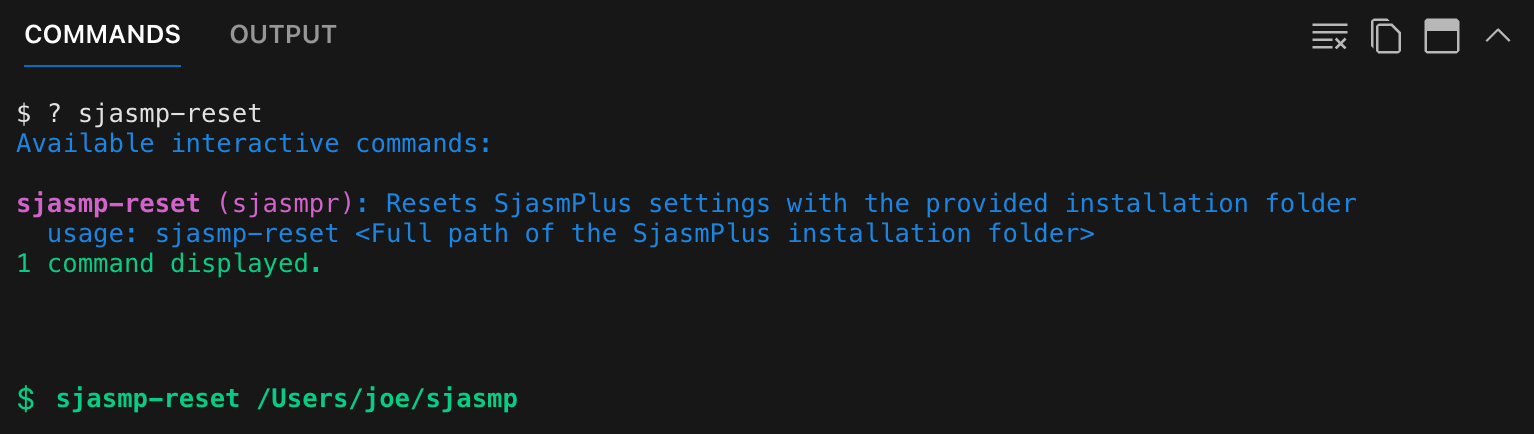
The command expects a single parameter: the path of the SjasmPlus installation folder. When Klive invokes the assembler, the SjasmPlus executable name is added to this path.
Unlike the dialog, this command stores the path without testing it. Open the integration dialog afterwards if you want to confirm that the folder really holds a working assembler.
Klive stores the SjasmPlus settings in the Klive.setting file. If you want to change this path for a particular project (perhaps you want to test with another SjasmPlus version), use the -p switch to save this setting into the currently open project.
Using SJASMPLUS
After setting up the SjasmPlus integration, you can create Klive projects with the sjasmplus template:
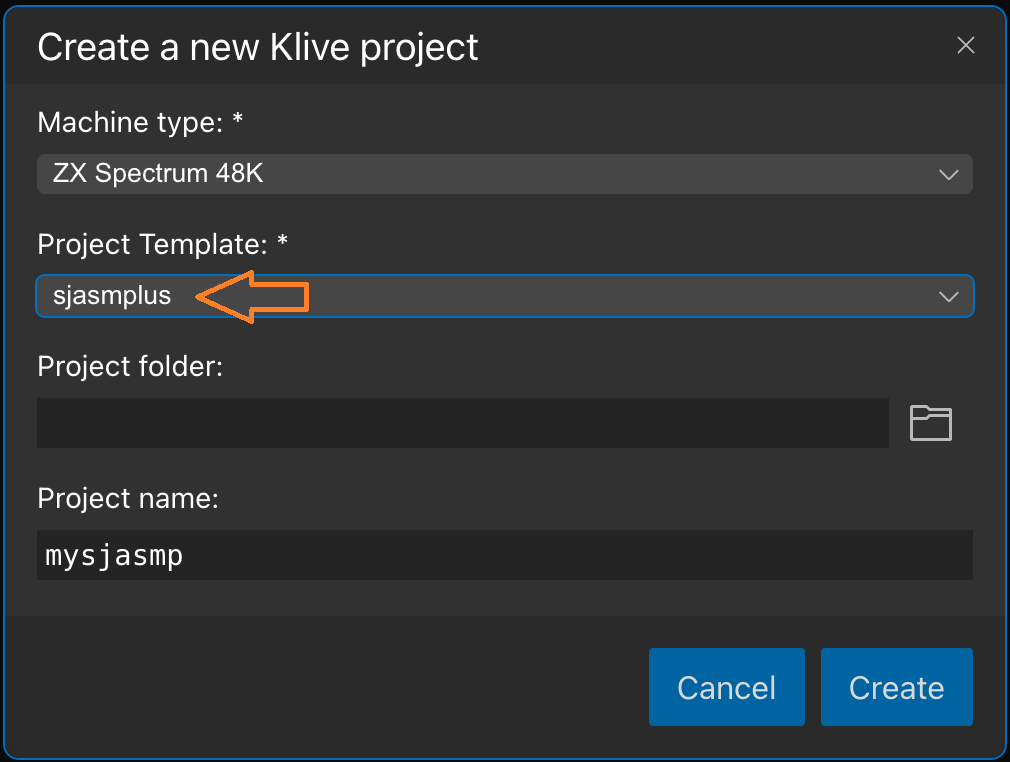
This template creates a project with a code.asm file as the build root and associates the .asm and .sjasm file extensions with the SjasmPlus compiler.
If you start with an existing project, you can create source code files with the .sjasm extension and promote them to build roots. Such a file will leverage the SjasmPlus compiler.
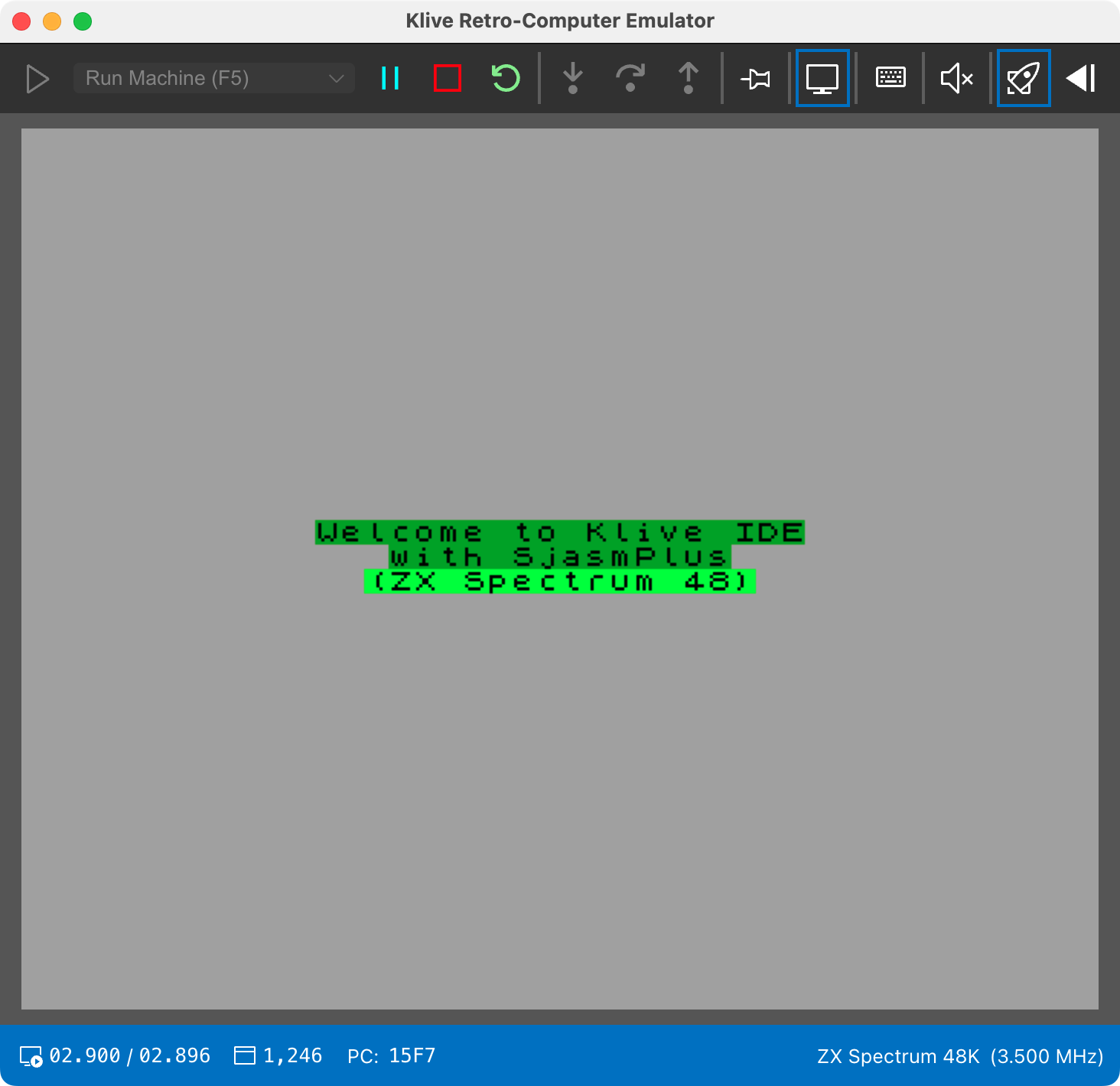
When you run the SjasmPlus code in the default Klive project template, you can see the result in the Emulator window: