Using the ZX81 and ZX80
Klive emulates the Sinclair ZX81 and its predecessor, the ZX80. Choose one from Machine in the emulator’s menu:
| Machine | Models |
|---|---|
| Sinclair ZX81 | 16K (the default), 1K, 64K, and the US machine (Timex Sinclair 1000) with 16K or 1K |
| Sinclair ZX80 | 16K, 1K, and the ZX80 with the 8K ROM upgrade (the ZX81 ROM) |
The ZX81’s picture is built the way the real machine builds it, line by line, from the display routine the ROM runs. So both of its modes work as they did: SLOW mode computes and displays at the same time, and FAST mode shows no picture while a program runs. Programs that draw their own hi-res graphics also work.
Typing
The ZX81 has no separate keys for its keywords: the key you press means a keyword or a letter
depending on the cursor. At the K cursor, P is PRINT, J is LOAD and R is RUN. To print a
greeting, type P, then Shift+P for the quote, HELLO, Shift+P again and Enter:
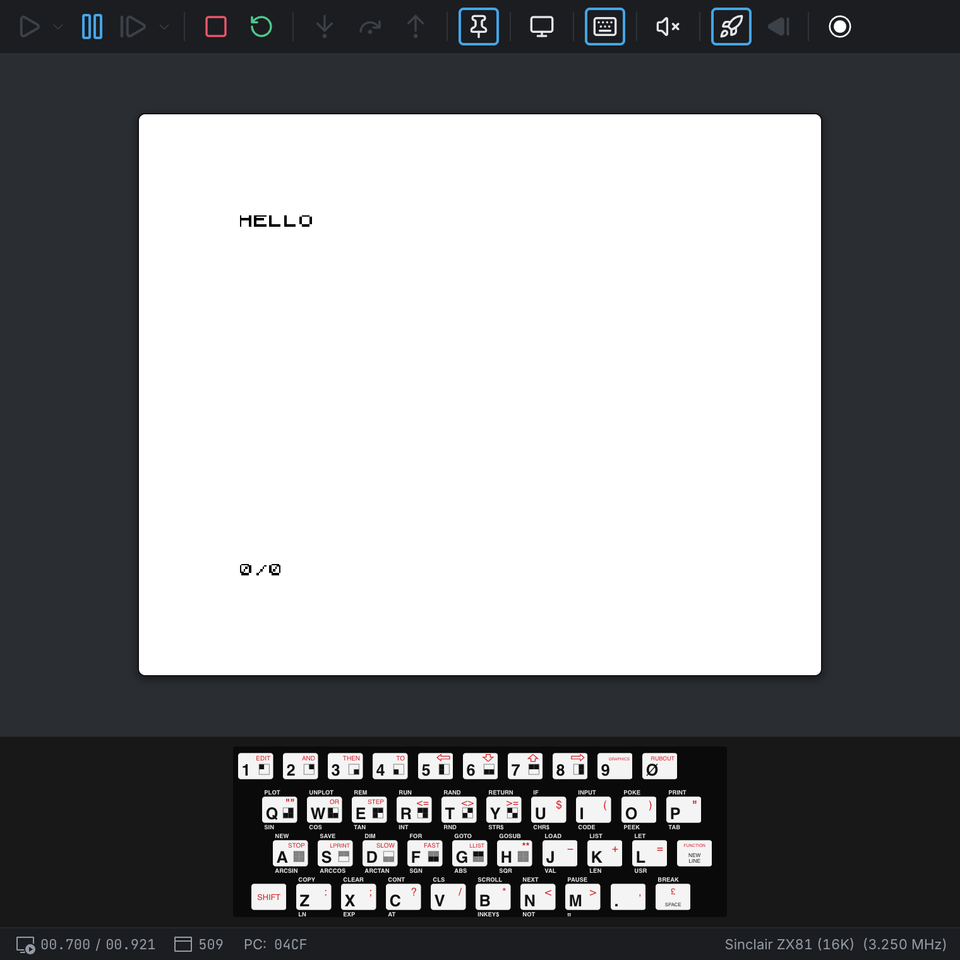
Your keyboard maps to the ZX81’s like this:
| Your key | ZX81 key |
|---|---|
| Both Shift keys | SHIFT |
| Enter | NEW LINE |
| Backspace | RUBOUT (SHIFT+0) |
| The arrow keys | the cursor keys (SHIFT+5 to SHIFT+8) |
| Escape | BREAK (SHIFT+SPACE) |
` or F1 | EDIT (SHIFT+1) |
| Comma | SHIFT+. |
The virtual keyboard follows the original’s layout. Click a key to press it, or click it with the
right mouse button to press it with SHIFT. Clicking a red legend presses SHIFT with the key. Clicking
the function printed under a key (SIN, RND…) or the block graphic on a key types the keys
that produce it:

The ROM ignores a key pressed too soon after the previous one. If the virtual keyboard seems to skip a click, wait for the last one to appear on the screen.
Loading programs
ZX81 programs come as .p (or .81) files, ZX80 programs as .o (or .80) files. They hold a
copy of the machine’s memory, the way the ROM saved it to tape. To load one:
- Choose Machine → Select Program File…, then Machine → Load and Run the Program; or
- right-click the file in the Explorer and choose Load and run tape; or
- run
tape-load <file> -rin the command prompt.
Klive resets the machine, types LOAD "" (on the ZX80, LOAD), and when the ROM has loaded the
program, types RUN. Programs saved to start themselves just start. With Fast Load on (the
default) the program loads at once; with it off, it plays in real time, as from a cassette, and the
ROM’s stripes show on the screen while it loads.
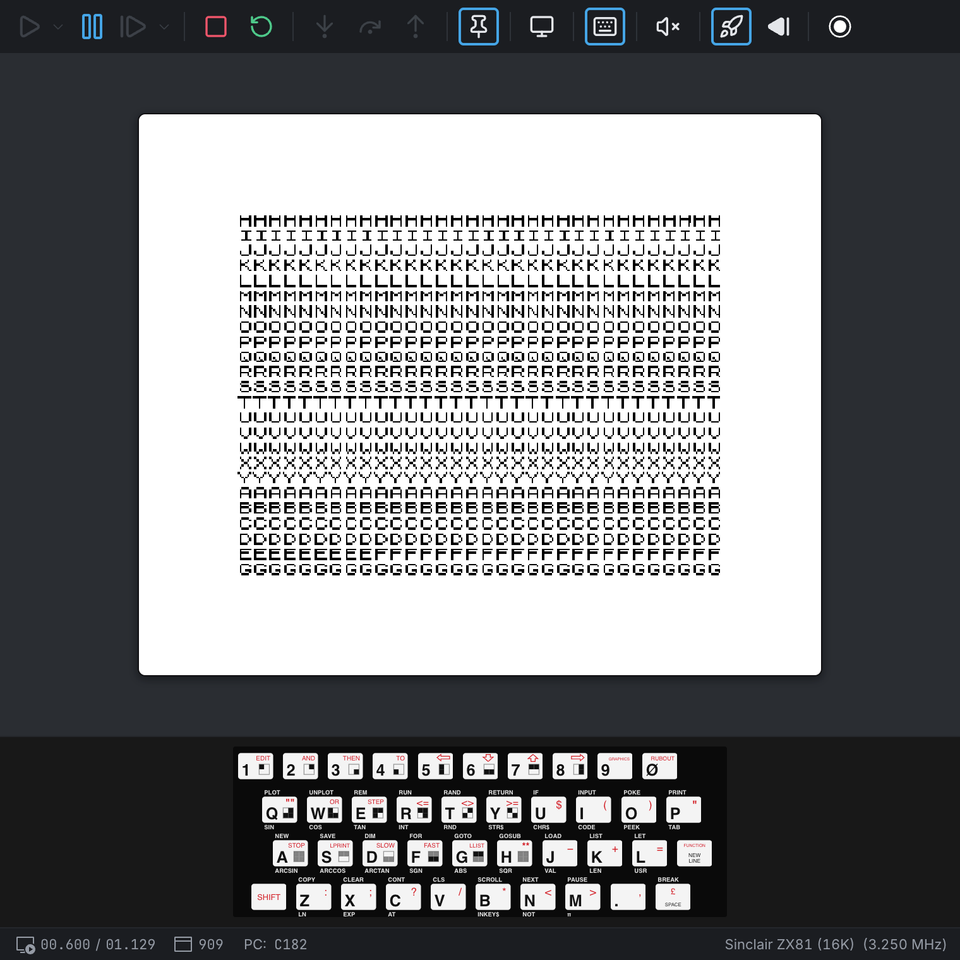
A program saved in FAST mode loads in FAST mode, so it shows no picture while it runs. Type FAST
or SLOW (SHIFT+F, SHIFT+D at the K cursor) to switch.
Debugging
Breakpoints, stepping, and the CPU and memory panels work as on the other machines. The
disassembly shows the byte after RST $08 as the ROM’s error report, and the calculator literals
after RST $28 by name.
While the ROM draws the picture, the CPU runs the display file through its copy above 32K
($C000 and up). The ZX81’s ULA turns every character there into a NOP. So when you step through
that area, the disassembly shows the characters in memory, but the CPU executes NOPs.
The ROMs
The ZX80 and ZX81 ROMs ship with Klive. They may be used free of charge in non-commercial
products; their notice is in roms/zx8081-roms-readme.txt next to the ROM files.