The Sprite Inspector
A ZX Spectrum Next program usually uploads its sprite patterns once and then moves its sprites every frame by writing four or five attribute bytes each. When the picture is wrong, the cause is almost always in those bytes — a wrong pattern number, a sprite attached to the wrong anchor, a stale fifth byte, the ninth bit of X — and the Z80 cannot read any of them back. The Sprite Inspector shows them, decoded, next to the pattern memory they point into.
It is one document with two linked views: Sprites (the 128 attribute slots) and Patterns (the 16K of pattern RAM). Select a sprite and its pattern is marked in the sheet; select a pattern and its users are highlighted in the table. It is available on the ZX Spectrum Next only.
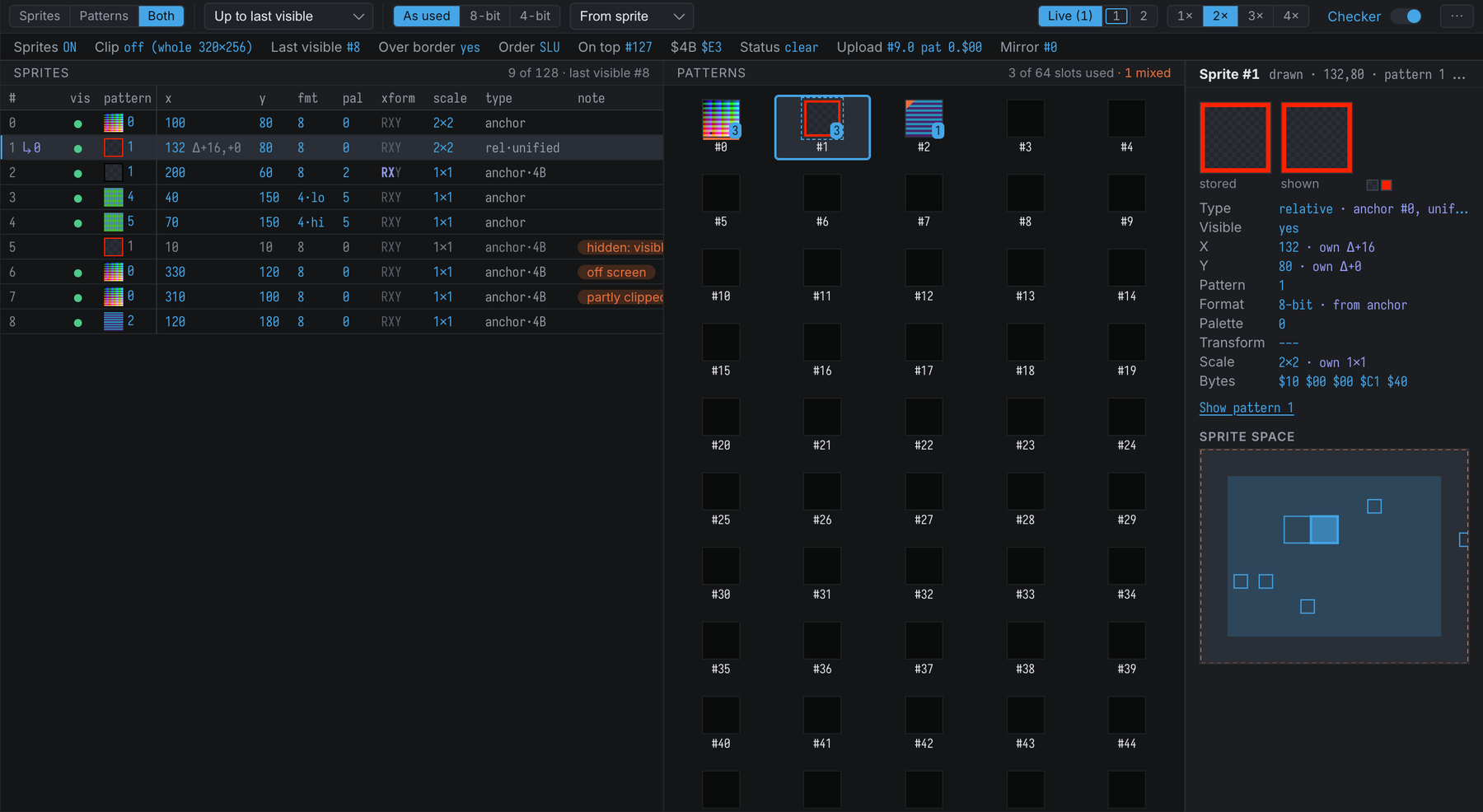
Opening It
Use Machine → Show Sprite Inspector, or one of the commands:
show-sprites          ; the Sprites view
show-sprites 12       ; ... with sprite 12 selected
show-patterns 40      ; the Patterns view, with pattern slot 40 selected
The Layout
The document arranges itself by its own width, so docking it in a narrow split behaves like a narrow window:
- Narrow: Sprites and Patterns are tabs, and the inspector is a band under the list with the selection’s details on the left and the sprite-space map on the right — both visible at once. Drag the splitter above the band to trade list rows for band height.
- Medium: tabs, and the inspector is a rail beside the list, full height.
- Wide: Both is offered too: the table and the pattern sheet side by side, with the rail.
Both is the default; in a narrower document it shows the table, and a tab or a
show-patternscommand switches to the sheet without forgetting it.
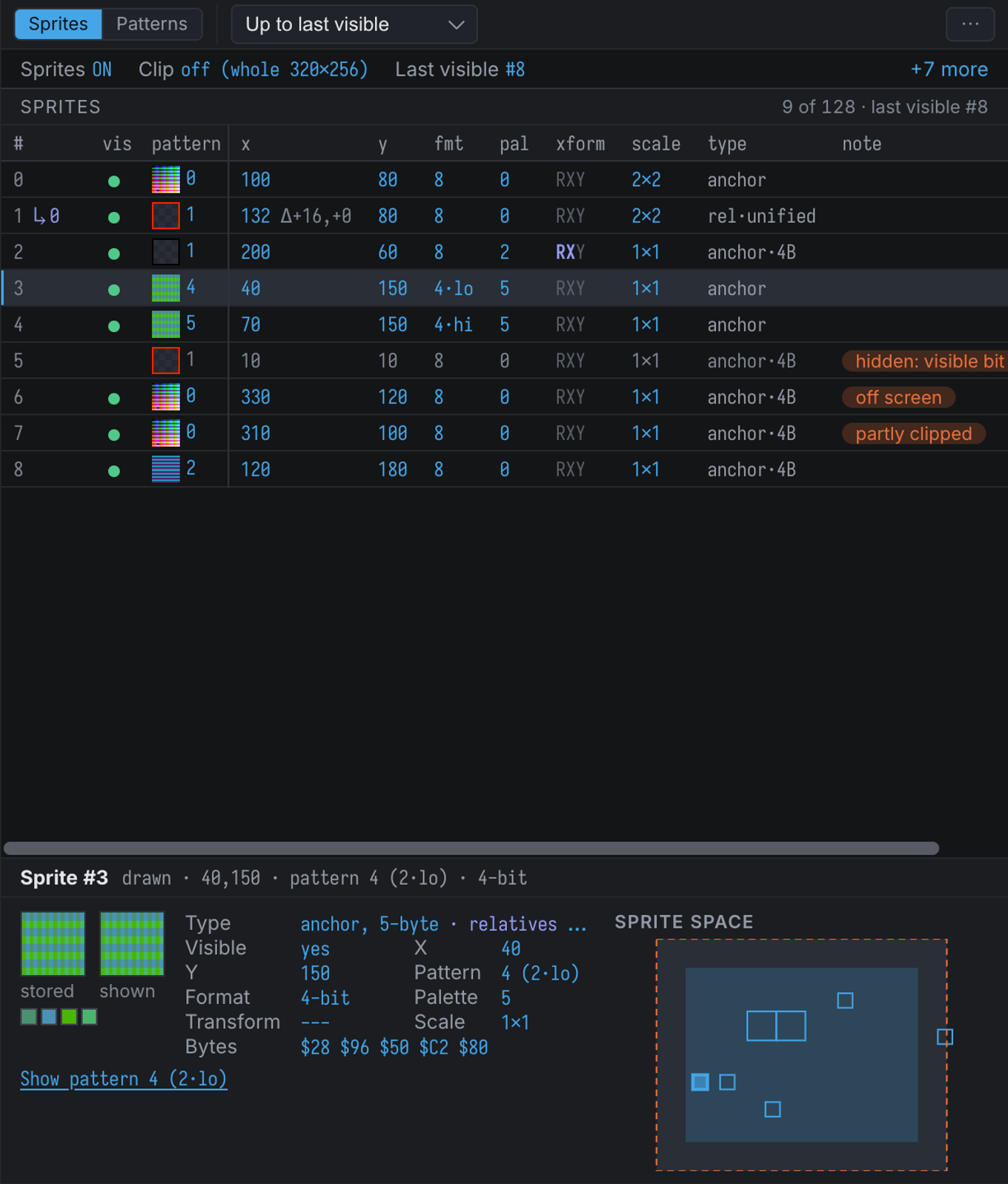
The toolbar is one line at every width. It holds the view tabs, the active view’s own controls (the
table’s filter; the pattern format and palette offset), the sprite palette (Live follows NextReg
$43 bit 3; 1 and 2 pin a palette — a ring marks the one the hardware is drawing with),
and the zoom and checkerboard when there is room. Whatever does not fit is in the ⋯ menu, which
also holds Show raw attribute bytes, the format of unused pattern slots, and Export pattern RAM
as .spr. The document remembers these, and the pane sizes, with the workspace.
The inspector only reads. Opening it does not change the machine: it reads the sprite status (port
$303B) without clearing it, so your program’s own collision check still sees the flag.
The Globals Strip
The line under the toolbar holds what applies to every sprite. A raised flag (OFF, collision,
too many) comes first; in a narrower document the strip shows the flags, Sprites, Clip and
Last visible, and +n more opens the rest:
| Item | Shows |
|---|---|
| Sprites | NextReg $15 bit 0; OFF in amber when the sprite layer is hidden |
| Over border | $15 bit 1 |
| Clip | The effective clip window in sprite space. $19 is in different units in each mode — X is doubled over the border with clipping on, there is no clip over the border without it, and without the border the window is relative to the paper and stops at line 223. The tooltip has the raw $19 values. |
| Order | $15 bits 4-2: the layer order, top first |
| On top | Which sprite wins where two overlap ($15 bit 6) |
| $4B | The transparency index |
| Last visible | The highest slot with its visible bit set — the engine looks no further |
| Status | too many and collision from $303B |
| Upload | Where the next port $57 byte (sprite and attribute byte) and $5B byte (pattern slot and byte) will go |
| Mirror | The sprite NextRegs $35-$39/$75-$79 write; (tied) when $09 bit 4 ties it to the upload index |
“My uploads go to the wrong slot” is a common bug; the last two items answer it.
The Sprites View
One row per attribute slot. The header stays in place while the rows scroll, and moves sideways with its columns; the first three columns (#, vis, pattern) stay put when you scroll the table sideways, so a row keeps its identity. The filter shows Up to last visible (the default), All 128, Visible only or Non-empty.
| Column | Shows |
|---|---|
| # | The slot. A relative sprite carries ↳7, the anchor it is attached to. |
| vis | A green dot when the sprite is drawn; an amber ring when its own visible bit is set but its anchor is hidden; nothing when its bit is clear. |
| pattern | A thumbnail and the pattern number: 40 for an 8-bit sprite, 81 for a 4-bit one — the 4-bit numbering names 128-byte halves, so 81 is the high half of 256-byte slot 40. |
| x, y | The effective position. A relative also shows its own offset, Δ+16,+0. |
| fmt, pal | 8, or 4·lo / 4·hi for a 4-bit sprite (which half of the slot it reads), and the palette offset (+2 when it is added to the anchor’s). |
| xform | R, X, Y lit for rotate and the two mirrors. |
| scale | 1×1 to 8×8. |
| type | anchor, anchor·4B (a 4-byte sprite), rel·composite or rel·unified. |
| raw | The five bytes, behind the Raw switch. A 4-byte sprite’s fifth byte is struck through: it is left over from an earlier upload and ignored. |
| note | Why the sprite may not be what you expect (below). |
The effective values come from the emulator’s own sprite engine, so a relative sprite shows exactly where the hardware puts it: the anchor’s position plus the offset, rotated, mirrored and scaled the way a unified anchor transforms it.
A dot after the slot number marks a row whose bytes changed since the machine last stopped.
Why A Sprite Is Not Showing
The note column gives one short reason; the inspector spells out all of them:
hidden: visible bit clear— attribute 3, bit 7.hidden: anchor #7 not visible— a relative sprite is only visible when its anchor is. The anchor is the nearest non-relative slot before it, visible or not.hidden: no anchor— a relative sprite in slot 0, or after only relatives.sprites disabled ($15 bit 0).off screen,outside clip window,partly clipped— against the effective clip window. An X above 319 or a Y above 255 wraps to a negative position.pattern is all transparent,pattern is blank.4-byte: attr4 ignored(grey) — a four-byte sprite whose stale fifth byte would change it if attribute 3 bit 6 were set. Writing four bytes where five were meant is a classic bug.
Right-click a row to copy its attributes as nextreg instructions or as a .db line, or to show its
pattern. Double-click the thumbnail to go to the pattern.
To stop when a sprite’s attributes are written, set a NextReg write breakpoint
on the attribute registers (nr:$35-nr:$39, nr:$75-nr:$79). Writes through port $57 are not
caught that way.
The Patterns View
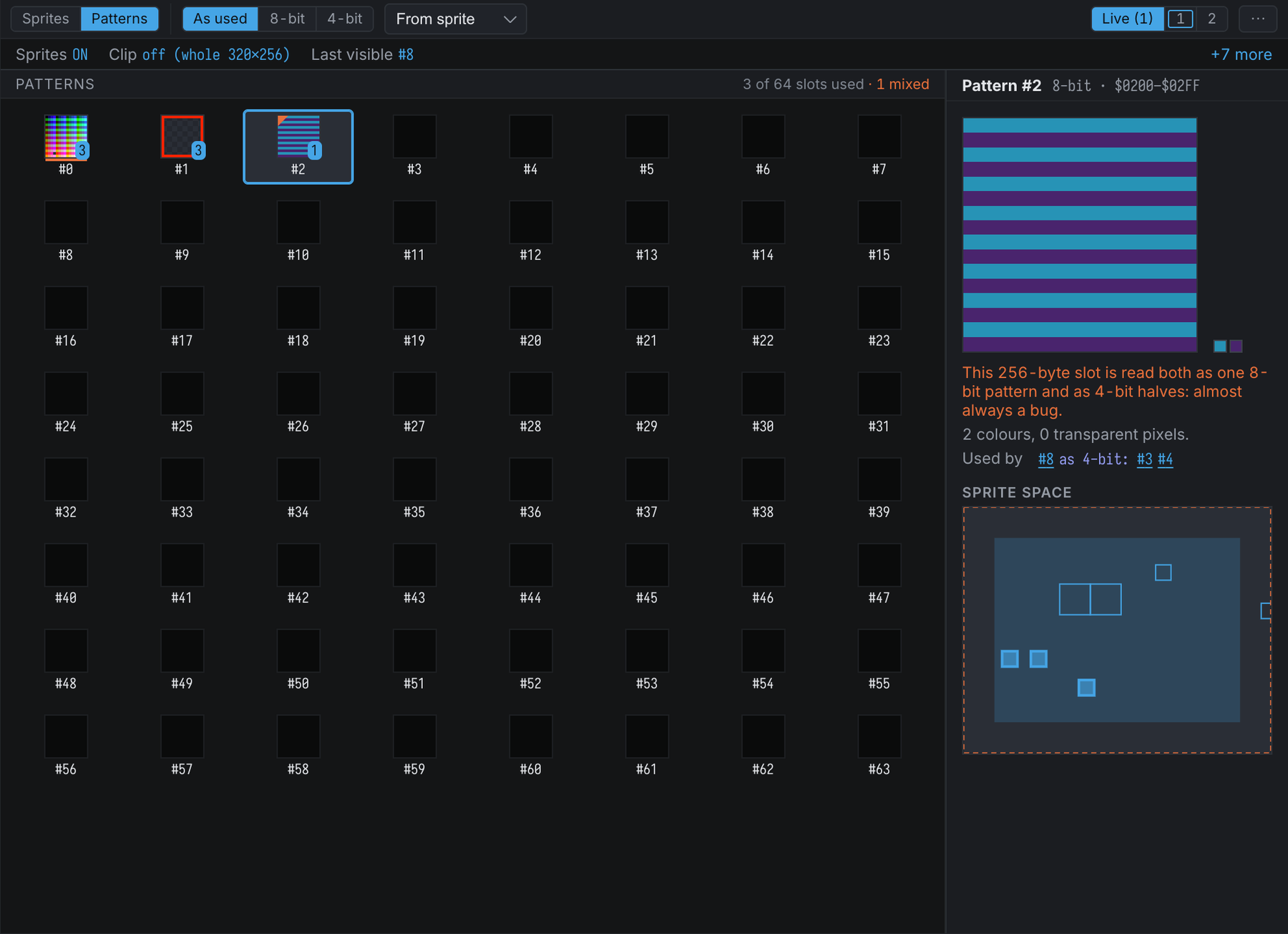
The 16K of pattern RAM, as a sheet:
Its controls are in the toolbar: the format and the palette offset, with the format of unused slots in ⋯.
- 8-bit shows 64 patterns of 256 bytes, 4-bit 128 patterns of 128 bytes.
- As used (the default) draws each 256-byte slot the way the sprites that use it read it: as one 8-bit pattern, or as two 4-bit halves. A slot no sprite uses is drawn in the unused format.
- A badge counts the sprites that use a pattern — in the accent when one of them is visible. Unused and blank patterns are dimmed.
- A slot read both as 8-bit and as 4-bit gets an amber corner. That is almost always a bug.
- An amber bar under a cell marks where the next byte written to port
$5Bwill go. - From sprite draws each pattern with the palette offset of its first visible user, so the sheet looks like the screen; Fixed n uses one offset for all. The offset applies to 8-bit patterns too, where the hardware adds it to the high nibble of each pixel.
Exporting The Pattern RAM
Export pattern RAM as .spr (in ⋯) writes the pattern RAM to pattern-ram.spr in your project and opens it in the
sprite editor. The file holds the 64 8-bit patterns; a 4-bit pattern is half of one of them, so
nothing is lost. The export-patterns command does the same
with a file name of your choice.
Opening A Pattern In The Sprite Editor
Open in sprite editor (in the inspector, for a sprite or a pattern, and in a row’s right-click
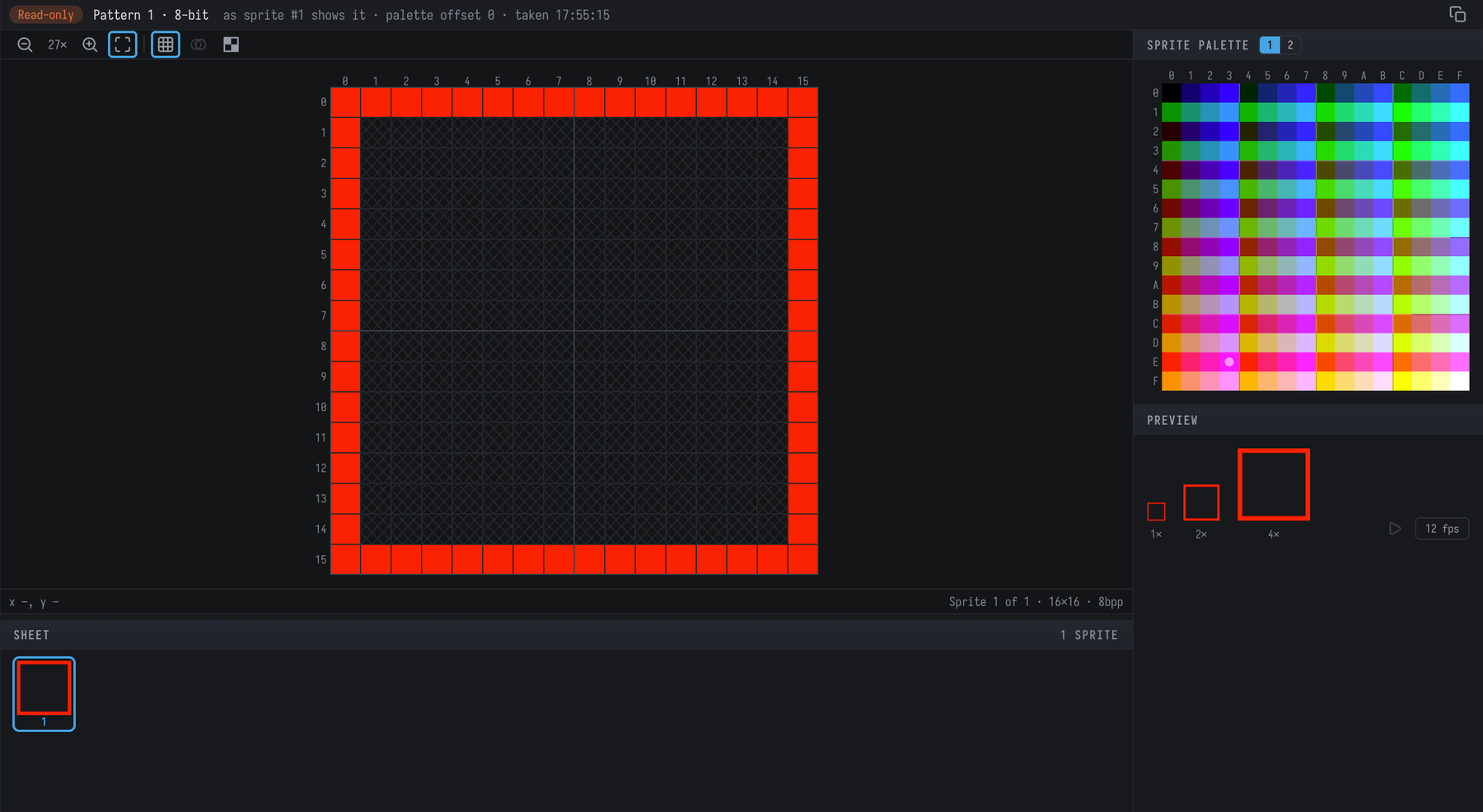
menu) pops the pattern out into a read-only sprite editor, so you can examine it pixel by pixel
the way you would a .spr file: zoom, grid, onion skin, the live sprite palette, the coordinates and
colour index under the pointer, and Copy, to paste it into a sprite sheet of your own.
The snapshot is the pattern as the sprite shows it, frozen when you took it:
- a 4-bit pattern is shown with the sprite’s palette offset in each pixel’s high nibble, so the indices are the ones the hardware draws;
- an 8-bit pattern has the offset added to its high nibble (with offset 0 the bytes are unchanged);
- a transparent pixel is the transparency index (
$4B).
From a pattern rather than a sprite, the palette offset is the one the Patterns view uses (From sprite or Fixed n). The bar at the top says which pattern it is, which sprite it was taken for, the offset and the time. Taking the same pattern again refreshes its tab; the snapshot is not saved and does not come back with the workspace.
The Inspector
The band or the rail shows the selection. Its header line sums it up: Sprite #9 · drawn · 120,69 · pattern 9 · 8-bit.
For a sprite: its pattern as stored and as shown (rotated and mirrored the way the
hardware does it — it rotates first, then mirrors — and scaled), the colours it uses, the
reason it may be hidden (in amber, only when there is one), and every field with its effective
value — what the hardware draws. Where the slot’s own bytes say something else, as they do for a
relative sprite, that follows in the secondary colour: 132 · own Δ+16.
The sprite-space map is the whole 320×256 sprite area: the paper, the effective clip window (dashed) and every visible sprite as an outline, the selected one filled. Click an outline to select that sprite.
For a pattern: the pattern large, a hint about its content, and the sprites that use it — for a slot that is read both ways, the users of the other reading too. The header line gives its byte range in pattern RAM, and the map fills every sprite that uses it.