The Beam Position
Mid-frame effects — border stripes, Copper splits, a palette change per line, updating a sprite before the beam reaches it — are all about where the beam is when an instruction runs. When the machine is paused, Klive shows it on the emulator screen:
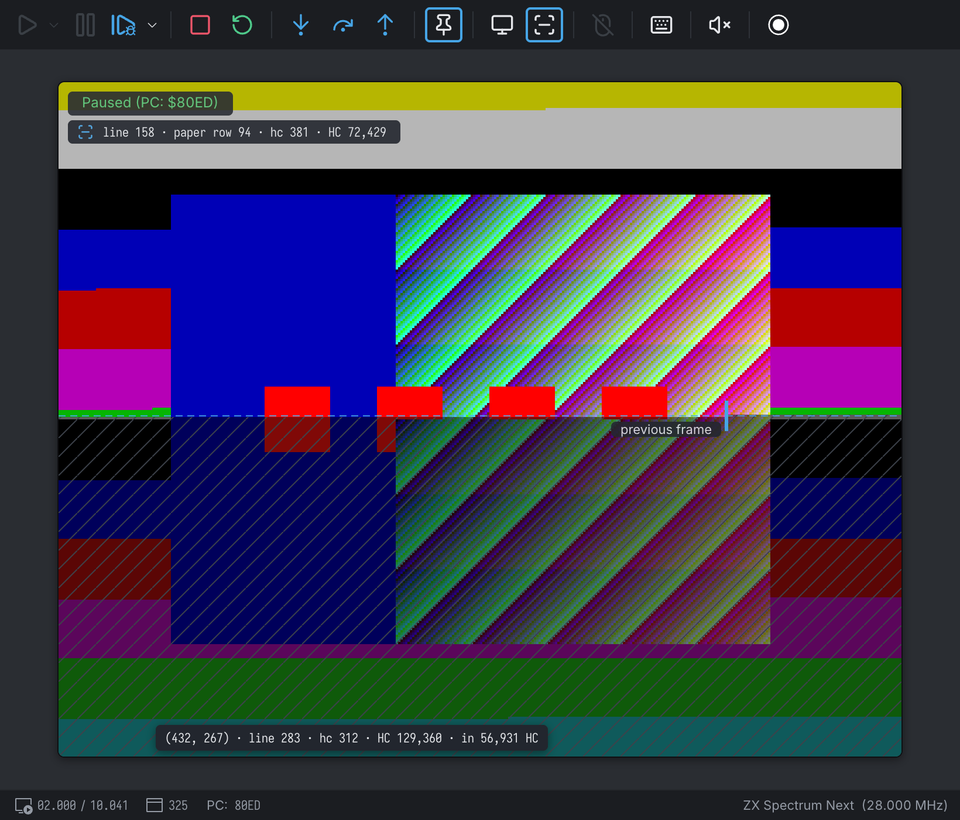
- a dashed line across the beam’s row and a tick at the pixel it is drawing;
- a pill with the beam’s position:
line 158 · paper row 94 · hc 381 · HC 72,429— the raster line, the row of the paper (or top border, bottom border), the position within the line, and the frame tact; - the part of the picture past the beam, hatched and labelled previous frame.
The overlay appears only while the machine is paused — at a breakpoint, after a step, or after Pause — and disappears when it runs again. It is available on the ZX Spectrum Next and on the ZX Spectrum 48K, 128K, +2A/+3, +2E/+3E, Pentagon, Scorpion and Timex models. The Cambridge Z88 has an LCD and no beam, so it has neither the overlay nor its toolbar button and setting.
Why Part Of The Picture Is Hatched
The emulator draws the screen as the beam does, a little at a time while the CPU runs. When the machine stops in the middle of a frame, the screen holds two frames at once: this frame up to the beam, and the previous frame after it — including pixels your program has already changed in memory, because the beam has not reached them yet.
Without a mark, that second part looks like a bug in your program. So the overlay hatches it: what is under the hatch is real, but it is last frame’s. In the picture above, the border stripes do not line up across the beam line for exactly this reason.
Before it draws the overlay, Klive also brings the paused picture up to the beam: everything the beam has drawn this frame is on the screen, even the part the emulator had not caught up with yet. This is done on a copy of the picture and changes nothing in the machine — running on, the frame is drawn exactly as it would have been without a stop.
With Instant Screen on, the paused picture is the whole screen drawn from memory as it is now, so there is no “previous frame” part: the overlay draws only the beam line, and the pill says instant screen.
When The Beam Is Off The Screen
The beam spends part of every line, and some lines of every frame, outside the visible picture. Then the overlay marks the edge it left and the pill names where it is:
HBLANK— horizontal blanking, between the end of one row and the start of the next. The beam line marks the row just finished, with a marker at the right edge.VBLANK · 12 lines to the top border— vertical blanking, between the bottom of one picture and the top of the next. A line along the top (or bottom) edge marks it.
How Far Is The Beam From A Pixel?
Point at the paused screen, and the overlay tells you when the beam gets there:
(432, 267) · line 283 · hc 312 · HC 129,360 · in 56,931 HCthe pixel, its raster line and position, its frame tact, and how many tacts until the beam draws it — or drawn if it already has this frame. That is how long your code has to change something before the beam reaches it.
Units
The ZX Spectrum models count in T-states of the 3.5 MHz CPU clock (T 26,189); the position
within the line is called tact. The ZX Spectrum Next counts in 7 MHz pixel-clock units, the
hardware’s HC (two per 3.5 MHz T-state), and its position within the line is hc. The Next’s line
and frame lengths change with its display timing (48K, 128K, +3, Pentagon, 50 or 60 Hz); the overlay
always uses the timing of the frame in progress.
The ULA view’s RAS and POS show the same raster line and position.
The Copper
On the ZX Spectrum Next, when a Copper breakpoint stops the machine, the
Copper’s hit gets a second marker in the secondary accent colour, labelled Copper hit $001. The
machine stops at the end of the CPU instruction during which the Copper hit its breakpoint, so the
Copper’s position and the CPU’s are a few pixels apart; the two markers keep them apart.
Turning It On And Off
The overlay is on by default. Turn it off or on with the beam button in the emulator toolbar,
Settings → Emulator → Beam position, or the beam command:
beam          ; says whether it is shown
beam off
beam on